Word – Tips & Tricks


  • Changing Case Shortcut
    • Shift-F3 toggles text between first letter uppercase, all upper case, and all lower case.
  • Merging Table Cells without Merging Rows
    • Click on Design tab and then choose the Eraser Tool.  Click and drag on the table border that you want removed (e.g. drag down between two columns, and the result will be the columns merge content without merging rows)

learncentral – Elluminate

Host Your Own Webinars (free)

LearnCentral allows educators to use a free public Elluminate room to hold large webinars or group meetings.  To qualify, the events must be 1) education-oriented and non-commercial, 2) free (you’re not charging those who attend), 3)  recordable, and 4) open to anyone to attend… ” 

Bill Gibson | LearnCentral

Also…

With Elluminate vRoom (info & registration) you can meet online FREE with up to two others.

Go!Animate


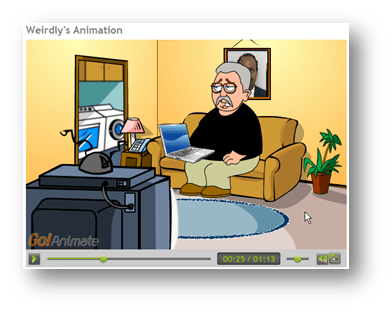
A conference presenter pointed out this site. I visited the site, signed up for a free account, and then went about the task of creating a cartoon alter-ego (me) and then developing a few cartoon scenarios in which I was the star (or at least a willing participant).

In the animation (shown left), I talk on the phone (using my real voice, which I created using Audacity, and then uploaded as an mp3 file), I have a laptop computer, which I got from the Microsoft Office digital clipart collection, and even have our CIO’s picture on the wall behind me, and above the sofa.

The interface is easy to use. The actors have a set of pre-programmed actions and movements, so you don’t have to figure out how to make them sit, walk, run or talk.

Animation has “attention grabbing” capabilities, but this would also be perfect for young people to express themselves in a less threatening way. You could have them create situations for the actors and then develop to a finished presentation to be shared.

Click on the animation photo to go view it on GoAnimate, and then try it yourself.

I Read the Paper, “Worst Ice in 25 Years…”

Let me say that when I woke up this morning, I had no clue that I would pick up the front page of a Swedish newspaper and be able to read the stories listed there. I don’t speak or read Swedish. It wasn’t even my intent to read any newspaper. I actually started my journey looking for new things in educational technology.

One of the tricks I’ve learned is that if you can find an educational conference (probably any type of conference) listed online, you can quite often google for their keynote speaker, or on a presenter who appears to be giving an interesting presentation, and find their materials online (if not on the conference web site, then on the presenter’s site). Many presenters are often quite generous in sharing what they are currently interested in, with anyone who asks them a question. And, several times, I’ve perused the materials that they plan to share with upcoming conference attendees.

So, I found a conference (MACE http://www.mace-ks.org/maceconference.htm), and saw the name of the keynote speaker, Janet Wozniak. Now until I started to write this article, I really did not intend to pursue if Wozniak was in some way connected to one of the Apple creators, but googling produced this:

http://twitter.com/JanetWozniak
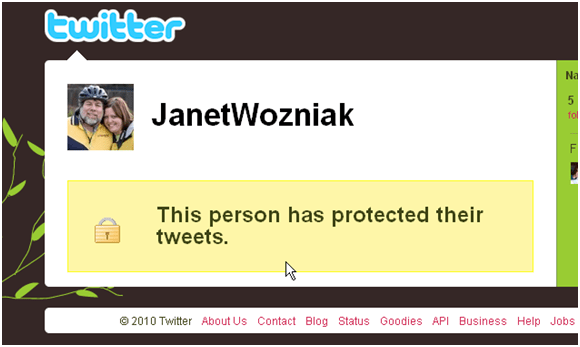
If you note than in the bottom right corner of the image above, is a link to “Jobs”. A coincidence… nah, it doesn’t have anything to do with Apple co-founder Steve Jobs.

If you google on “Wozniak Apple” you find several entries, but this one was the most helpful. You see that he has been married four times, and the latest is “Janet Hill” Wozniak. You also get a picture to compare with the one above.

http://en.wikipedia.org/wiki/Steve_Wozniak

One of Janet’s handouts, in PDF format, was called “Think Back” and the first link was to the following:

http://www.newseum.org/todaysfrontpages/flash/

I clicked on the link and first chose the News & Observer, and next the Fayetteville Observer, but before I was through, I saw that you could also find papers around the world and so I chose Europe and eventually the Sundsvalls Tidning (why I don’t know).

NEWSEUM.ORG PRESENTS “TODAY’S FRONT PAGES”

Interactive map of the newspapers that are participating (France obviously has a problem.)

http://www.newseum.org/todaysfrontpages/pop_up.asp?fpVname=SWE_ST&ref_pge=map&tfp_map=Europe

I didn’t have a clue as to what the articles were about, at first.

I usually go to Babelfish for my translations, but they did not have a Swedish to English translation, so I found “Google Translate” and selected the Swedish to English option: http://translate.google.com/#sv|en|

I began to type in the words from the page, and didn’t even have to enter the special characters (although I’m pretty sure you might get a better translation if you did).

Here is part of what I typed into the translation window:

som blockerar sjofarten i Sundsvallsbukten.

I gar var de tvunga att ga in i Tunadalshamnen for att proviantera.

– Det har ar nog den varsta isen pa 25 ar, sager Alnobon Daniel Nasman, forste maskinist pa Ymer.

And here is what began to appear with “Instant Translation” turned on:

that block shipping in the Bay of Sundsvall.
Yesterday, they had to go into Tunadal harbor for provisioning.
– This is probably the worst ice in 25 years, “says Daniel Alnobon Näsman, second engineer officer on Ymer.

Having read most of the front page article, and understood it, with the help of Google Translation, I knew the ship, the Ymer, was an icebreaker, so I googled on “icebreaker Ymer” and found the following pictures and info:

http://en.wikipedia.org/wiki/Ymer_(icebreaker)

and a video tour via YouTube: http://www.youtube.com/watch?v=fzKKiXdUA0k

Sundsvall, and Tunadal harbor (via Google maps): http://maps.google.com/maps?source=s_q&hl=en&geocode=&q=Tunadal+harbor&sll=37.0625,-95.677068&sspn=33.160552,56.337891&ie=UTF8&hq=Tunadal+harbor&radius=15000.000000&split=1&hnear=&ll=62.418996,17.446289&spn=0.151329,0.44014&z=11

So, without being aware of it, I had not only discovered one of the “new things in educational technology,” I had actually put it into practice.

YouTube Closed Captioning – How Easy is That!?!

I was listening to the Cool Teachers Podcast #36, and they mentioned (in passing) that there was a nice feature in YouTube that made it easy to append captions to your videos.  I’m not sure why I “glammed” onto that bit of info, since I have only uploaded two (now 3) test videos, and that sometime ago.

I had a short video that I had created a long time ago, showing how easy it was to create a professional looking video using Visual Communicator.  I pulled up the video and clicked on the Caption button (logged in).  I played the video several times to complete my transcription in Word (had to convert to a simple text file).

Take a look.  YouTube synced the timings after I uploaded the captions text file.  *I tried a somewhat longer video, and although not perfect, this process worked “darned well”.

This has got me looking at Dragon Naturally Speaking again (the Preferred Educational Version) because I want to try using that software to transcribe the audio ripped from a video.  I can use Cucusoft to rip the audio first, and Audacity to convert from mpeg to wav, if necessary before passing it through Naturally Speaking.  If it all works, it would be the really easy way to get Closed Captioning on alot of video quickly.  -bg2

Voice to Text Software

Voice to Text Software


Just before the holidays I got up early one morning and was watching television in the early morning hours. During a commercial break I saw an advertisement for Dragon NaturallySpeaking. There was a special holiday offer for the software. It was only $49 for the standard version and it said it came with a microphone and headset.

I didn’t write down the web address, but, I did make a note that part of it was “/holiday”. I figured I could google for the address. Later that morning at the office, I found the web address for the company, which is Nuance, got my Visa card out, and put in an order for the product. As I have said previously, the Standard version was only $49, but if you ordered an extra copy, you could get the extra copy for only $39, and that there would be no shipping charges apply to either.

The order was put in on the 17th of December, just a week before Christmas, and I did not expect to get it before the holiday was over. But the following week, on Tuesday after 6 PM, there was a knock on the door and the delivery man handed me the package and hurried quickly away.

A little later, I was unpacking one of the software boxes, and found that there was a headset included along with the software. I put the CD in my laptop and ran the setup, which probably didn’t take more than about 10 minutes. I then plugged in the headset and began to try out Naturally Speaking.

I was both surprised and satisfied with how well the software worked. I began to train it on how to understand my Southern drawl. The software had me read several passages which were supposed to help it understand me better. The program will also ask if it can look through your e-mail or Word documents and by seeing the words and word combinations that you use, supposedly, it can better understand you when you speak.

I worked with the software on my laptop over the holidays, and this morning I installed the other copy on my office PC. I’ve been very pleased on how well it understands what I am saying and what I wanted to do when I give commands. There is a learning process for you to understand just how to ask for certain things. For example, enclosing items in quotes, in parentheses, bolding or italicizing a phrase, or capitalizing all the letters in a word or phrase requires you to learn just how to ask.

There are several versions of NaturallySpeaking and it appears that the Standard version does not allow you to import audio. The Preferred version does. If you use the preferred version, you would be able to record your dictation on a voice recorder and then run the audio file through NaturallySpeaking.

Except for a few hiccups, this entire posting was created in Microsoft Word 2007 and then posted to this site.

Checkbox Select-All for Browser.

If you ever use a form that requires you to select/de-select a number of checkboxes, and the programmer hasn’t included a “Select-All” button on the page, then you might want to create a browser bookmark that will do the job.

I’m not sure how to create a Bookmark or Favorite from scratch, so I just go to any web page and click on “Add to Favorites…” or “Bookmark This Page.”  After the item is created, I right-click on it and go to Properties.  I change the name of the bookmark to something like, “Checkbox Select-All” and then I replace the existing URL or Location field with the coding shown below.

Here is the code:>>==>

javascript:function%20checkem(){var%20d=window.frames[0]?content.document:document;for(var%20x=0;x<d.forms.length;x++){var%20cSet=d.forms[x].elements;for(var%20i=0;i<cSet.length;i++){if(cSet[i].type==’checkbox’){cSet[i].checked=cSet[i].checked?false:true;}}}}void(checkem())

<==<<

Then when you go to a form that requires you to check all the boxes, just click on the bookmark and the boxes will be selected.  Again, and they will be un-selected.

BK ReplacEm, a text replacement utility.

I have used the little text replacement utility, BK ReplacEm, for quite a few years now.  Not so much in the last year, since we have integrated/automated our Banner (Student Information System) and Blackboard (CMS), but it was indispensible for several years.

Before the Integration, I had to generate an student enrollment file for placing all students in all courses within our Blackboard System.  The file was quite large and “cleaning it up” was necessary before running it through Bb. 

MS Word was useless in dealing with this file.  It would bog down and fail to complete the process when I attempted the “search/replace” function.  But, BK ReplacEm quite often would complete the process so quickly that I was unaware that it was through.

The utility also offered a powerful variable text/phrase replacement function that meant it could work miracles when searching for variable length or content strings and then performing replacement.  And, you could point it to more than one file at a time.

I just noticed that BK ReplacEm is now called “Replace Text” and you can download it to use “freely” at    http://www.ecobyte.com/replacetext/ .

*I copied the groups.bkg file from my BK ReplacEm folder into the newly created Replace Text folder.  My groups came over without a problem, and I ran one of them and it worked just as always.

**Bill Klein created a “paper clip” utility, not showy, but useful in a small way, over and over again to many people.  Thanks!

Faculty WordPress Site

Here is a link to a dummy faculty site that I created.

http://faculty00.wordpress.com/

One of the first things that I would like you to notice, is that the instructor could create a posting “category” for each course they taught.  That way all of their students could subscribe to the course’s RSS feed, and would receive any new messages that had been categorized for their course.  *If email was “down,” as sometimes happens, it might be that this RSS feed would still be available (in times of emergency).

ePortfolio Initiative using WordPress

 ePortfolio Initiative using WordPress

The WordPress application is a popular “blogging” tool which is powerful enough to be a CMS (Content Management System) and can easily be used to create professional looking web sites.

Some reasons why the WordPress software makes a good eportfolio application:

WordPress.com currently gives 3 GB of space to each account.

    • You can create more than one blog/web site under your account.
    • Sites have names have the following syntax: “sitename.wordpress.com”
  • A site may be hosted on WordPress.com, or at other WordPress hosts, or the WPMU (multi-user version of WordPress) application may be hosted on your own servers.
    • Having a student host their site with WordPress.com, or some other 3rd party location, means that when the student leaves the institution, the institution does not have to maintain or archive their site. *The site is something that the student may choose to continue to use, or delete.
    • Running the application on an institutional server provides the flexibility of added features, of which there are many.
  • There is a low learning curve for learning how to use the application.
    • A user can quickly learn how to create posts or pages on their site.
      • The post/page creation tools look much like those in MS Word.
        • There are special buttons for uploading/attaching media files to the postings/pages.
          • PDF, DOCX, PPTX, XLSX, MPG, etc.
      • It is easy to create links to external and internal documents.
      • Posts can be published directly from MS Word 2007 (as drafts or live postings).
      • Posts can be published directly via email.
  • Because the WordPress application was initially a blogging tool, it is perfectly suited for presenting a running dialogue sequentially.
    • Each posting (an article, comment, reflection, etc.) can be categorized (multiple categories may be chosen for a single posting) so that all postings under a specific category may be viewed as a whole.
    • Some categories might include: “community service”, “daily journal”, “reflection”, “extra curricular”, etc.
  • Applying a “theme” to the site, easily changes the “look and feel”.
    • There are thousands of free themes. *Not all themes are appropriate or will work well with an eportfolio layout.
    • Applying a theme provides some individuality while maintaining sufficient structure for effectively presenting the necessary materials.
  • Individual documents may be password protected.
    • The user could password protect their resume so that only those viewer with the correct password could view/download their resume.
  • The entire site may be made “private” and only select users granted access to it.
    • Up to 35 users may be granted access. More users are available by upgrading site.
    • Each user must have a valid WordPress.com account.
      • Users do not need to create a blog site, just an account to be applied to other sites for access.
  • The software maintains a document history. All changes to documents are recorded so that the user can revert to a previous/earlier version of a document. It is also easy to compare two versions of the same document.
  • Site content is easily exported for archival purposes, or for porting to another WordPress site. *All site text content is exported as a single XML file.
    • Students and faculty could share course or project templates that are used, but become eportfolio “proofs”.
  • It is easy to create a site template which includes pages, posts, categories and documents, which may be imported into a student’s site.
    • There could be a generic eportfolio for entering Freshmen which could be used until the student declares a major.
      • An eportfolio site might be encouraged as a “recruitment” tool. Suggesting that potential students create an eportfolio site with the “generic” template before entering the institution.
    • An additional eportfolio template that has curriculum (major) specific pages, posts, categories and documents could be applied to the generic site, thereby fostering a continuity to the process.

Specific pages could be made invisible or deleted as necessary when they are no longer beneficial.