Using QR Codes for Political Mailouts, etc.

Richard Burr Committee Contact - QR Code Image If you want to make it really easy for people with smartphones to import your contact info, including phone numbers, email addresses and a URL to your web site, you should include a “QR Code” on your mailers and print ads in magazines (they could be used in other places as well, all sorts of promotional items).

I visited your site and copied some pertinent info into an online form for creating free QR Code images. This is what it produced and the images of my HTC Hero (Android) phone show how easily the barcode reading app imported the data.

Scan the QR Code image with your smartphone for more information.

Contact info easily imported into the phone.


A QR Code image can also contain all the pertinent info for a “calendar event” including: event title, location, date/time, and memo – phone number, link to web page.  Someone that wanted to add an event to their calendar would just need to scan the image and click on “Add to Calendar”.

3D Bar Codes

I’m not sure of the different ways you could use these, but I could see having some fun with 3D barcodes.   I use the “Google Goggles” Android app to read and interpret the barcodes shown below.  I’m not sure how the codes work.  Do they store all the info that they spit back out, or do they just point to a web address that has a database of recorded info?

Please visit my website at:

You can email me at:

My Office Phone number is:

I generated these 3D barcodes via BeQRious at:

Visit my Flickr site:

A message from me:

Audio Podcast via Cellphone

Well, it took about $20 and a couple of hours of testing, but I was just able to create an mp3 audio recording on my HTC Hero phone, and email/publish it to my Cape Fear River Steamers (WordPress) site.  Friday A

Surprisingly, to me, there isn’t an free Android app that creates mp3s from a recorded message.  I found a limited free app, HIFICORDER, which has a paid version for about $10 which will create an unlimited length (probably limited by SD card size).

iPad Ho Hum…

I had been wanting to meet this really pretty woman for some time.  The other day I finally got the chance and boy, “What a disappointment.”  Up close, I could see she was growing a fine moustache.  She constantly sucked on her teeth.  And, the more we talked, the less she knew.

Now, the truth is that there was no “pretty woman,” and those that know me, or have seen me lately know that any woman, let alone a pretty woman, even with a moustache, would be pretty unthinkable.   But, I wanted to use this analogy regarding me and my recent intercourse with the Apple iPad.  When I found that I was going to get one for testing purposes, my heart “jumped for joy.”  I had looked at most of the 2 hours of unveiling that Steve Jobs had presented via various hosts, and the thought of having an extremely portable web device nearby 24/7 “got my juices going.”

I have had an iPad for just shy of 1 week now, and have already begun to see its moustache and experience its “basic lack”.  But then, I’m no longer sure of what I should have expected.

It doesn’t support Flash.  And, according to an article I read by Steve Jobs, there is no need for Flash support.

Having lived mostly in the PC world for many of my years, going to a myriad of web sites just to find that the iPad or mobile Safari, or the lack of an app, will not let me experience the world that I’ve become accustomed to makes me begin to feel like Matthew McConaughey’s character in “How to Lose a Guy in 10 Days”.  I can hardly wait to drop her.

Okay, if I’m going to seriously use the iPad for wordprocessing, then I’m going to need to hook it up to a keyboard. *I do want to test out a Bluetooth keyboard and mouse (both for the iPad and the Android).  You would think with the iPad’s increased size and relatively large onscreen keyboard, that typing would be easy.  Then you realize that a touch typist relies on just that, “touch,” and a smooth surface provides no touch, not even a blip for a starting point and it’s not a full-sized keyboard so even “faking it” won’t work.  I was forced to “hunt & peck” again.

Some of the Web 2.0 technologies that I have been recently using don’t have a chance with the iPad:  Prezi and USTREAM.

I’ll write (and re-write) more, but I’m going home now.

Jing / Screencast – Screen Capture

JING is a free screencapture (still images and video w/audio) utility from TechSmith (Camtasia, Snagit).  You get the utility, 2 GB of storage on Screencast.com and limited bandwidth each month for free.  Upgrading to Pro for $14.95 per year gives you 25 GB and 250 MB per month bandwidth.  Pro also gives you some added options (to save video in either SWF or MPEG formats).

On Screencast, you can create public, hidden, password protected and authenticated folders.  An authenticated folder requires the viewer to have a Screencast account and login with it.

Sharing images or videos is easy.  You can cut-n-paste a short URL into your email, or link on a web page, or embed the image or video in a page by pasting the code.

Start Jing and a little yellow sun icon appears at the edge of your monitor window.  Click on it when you want to capture an item, check your history, and/or change some program options.

Selecting the capture area is easy.  Either click and drag the cursor to create a capture window, or click if the selected viewing window is highlighted already.

[Screenr.com provides similar video capture from your PC screen but requires a Twitter account.]

learncentral – Elluminate

Host Your Own Webinars (free)

LearnCentral allows educators to use a free public Elluminate room to hold large webinars or group meetings.  To qualify, the events must be 1) education-oriented and non-commercial, 2) free (you’re not charging those who attend), 3)  recordable, and 4) open to anyone to attend… ” 

Bill Gibson | LearnCentral

Also…

With Elluminate vRoom (info & registration) you can meet online FREE with up to two others.

Go!Animate


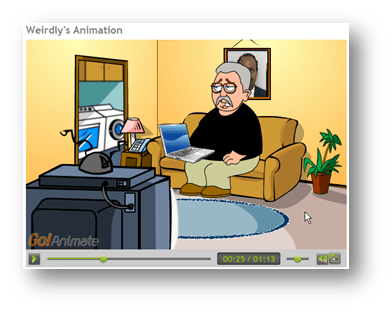
A conference presenter pointed out this site. I visited the site, signed up for a free account, and then went about the task of creating a cartoon alter-ego (me) and then developing a few cartoon scenarios in which I was the star (or at least a willing participant).

In the animation (shown left), I talk on the phone (using my real voice, which I created using Audacity, and then uploaded as an mp3 file), I have a laptop computer, which I got from the Microsoft Office digital clipart collection, and even have our CIO’s picture on the wall behind me, and above the sofa.

The interface is easy to use. The actors have a set of pre-programmed actions and movements, so you don’t have to figure out how to make them sit, walk, run or talk.

Animation has “attention grabbing” capabilities, but this would also be perfect for young people to express themselves in a less threatening way. You could have them create situations for the actors and then develop to a finished presentation to be shared.

Click on the animation photo to go view it on GoAnimate, and then try it yourself.